

Best CS2 Setup for Competitive Play in 2026: Mousepad, Keyboard, and Ergonomics
Quick Answer
Build around a clear mouse lane first. The Eclipse XL is a control-focused starting point for players who want more deliberate stops, while the compact Aurora65 can free lateral desk room when placed to the left. Keep sensitivity stable while testing changes, and use neutral, comfortable positioning rather than chasing a universal setup.
Shop: Eclipse XL | Aurora65
A competitive CS2 desk needs room for the movements you make, input devices you can place consistently, and a posture that remains comfortable through repeated rounds. Remove avoidable variables: cable drag, a keyboard in the mouse path, a surface that does not suit your stopping feel, or a chair position that makes you reach. The result is a setup you can learn rather than continually reconfigure.
Map the Setup Before Changing Gear
Think of the desk as one system. Mousepad size defines the usable lane; keyboard width and angle determine where it begins; chair, desk, and forearm position determine whether you can use it without tension. These choices do not add accuracy, but they can make a chosen sensitivity and movement pattern easier to repeat.
Before buying anything, do a full in-game sweep in both directions. Note whether the mouse catches a cable, contacts the keyboard, reaches a desk edge, or asks you to lift and recenter more than expected. Then keep a simple baseline: mouse DPI, in-game sensitivity, pad, keyboard position, and chair height. Change one variable at a time and keep it long enough to judge in familiar play.
A mousepad changes perceived glide and stopping resistance, not the number in the game’s sensitivity menu. A compact keyboard changes available desk space, not your aim mechanics. This distinction keeps upgrades purposeful. For a surface-only overview, Odin’s CS2 mousepad guide is a useful companion; this guide focuses on fitting the rest of the desk around that choice.
Control Mouse Room With Eclipse XL

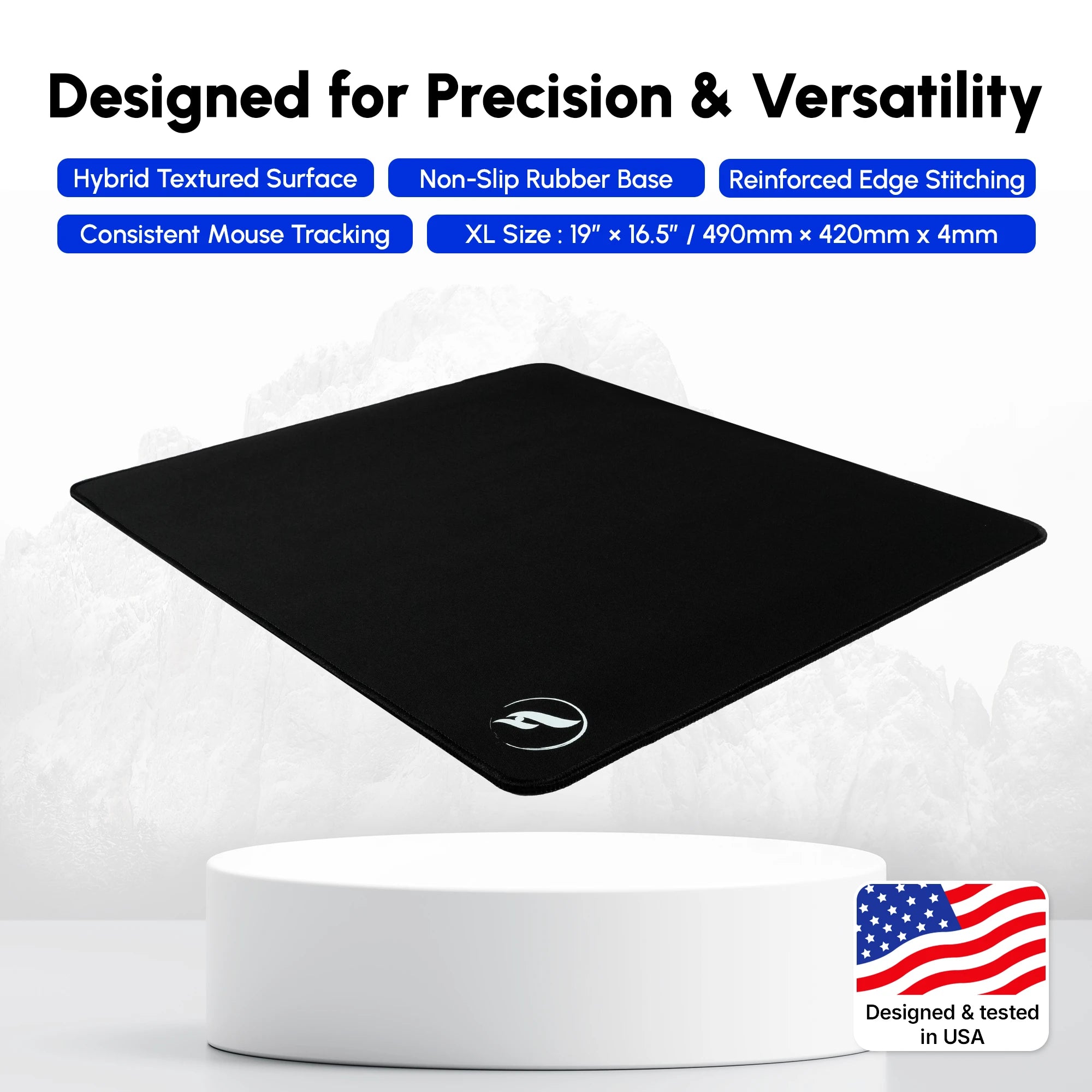
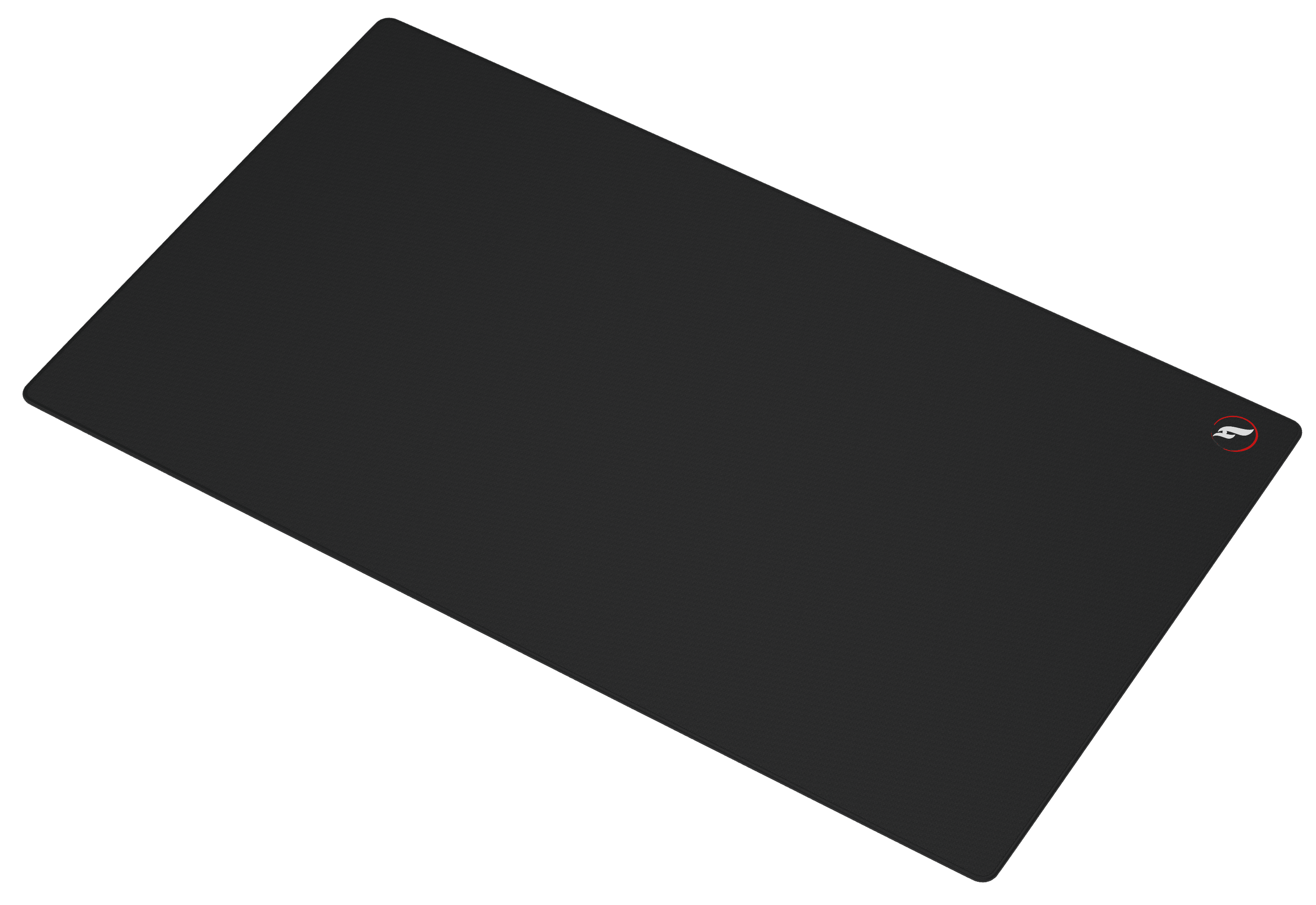
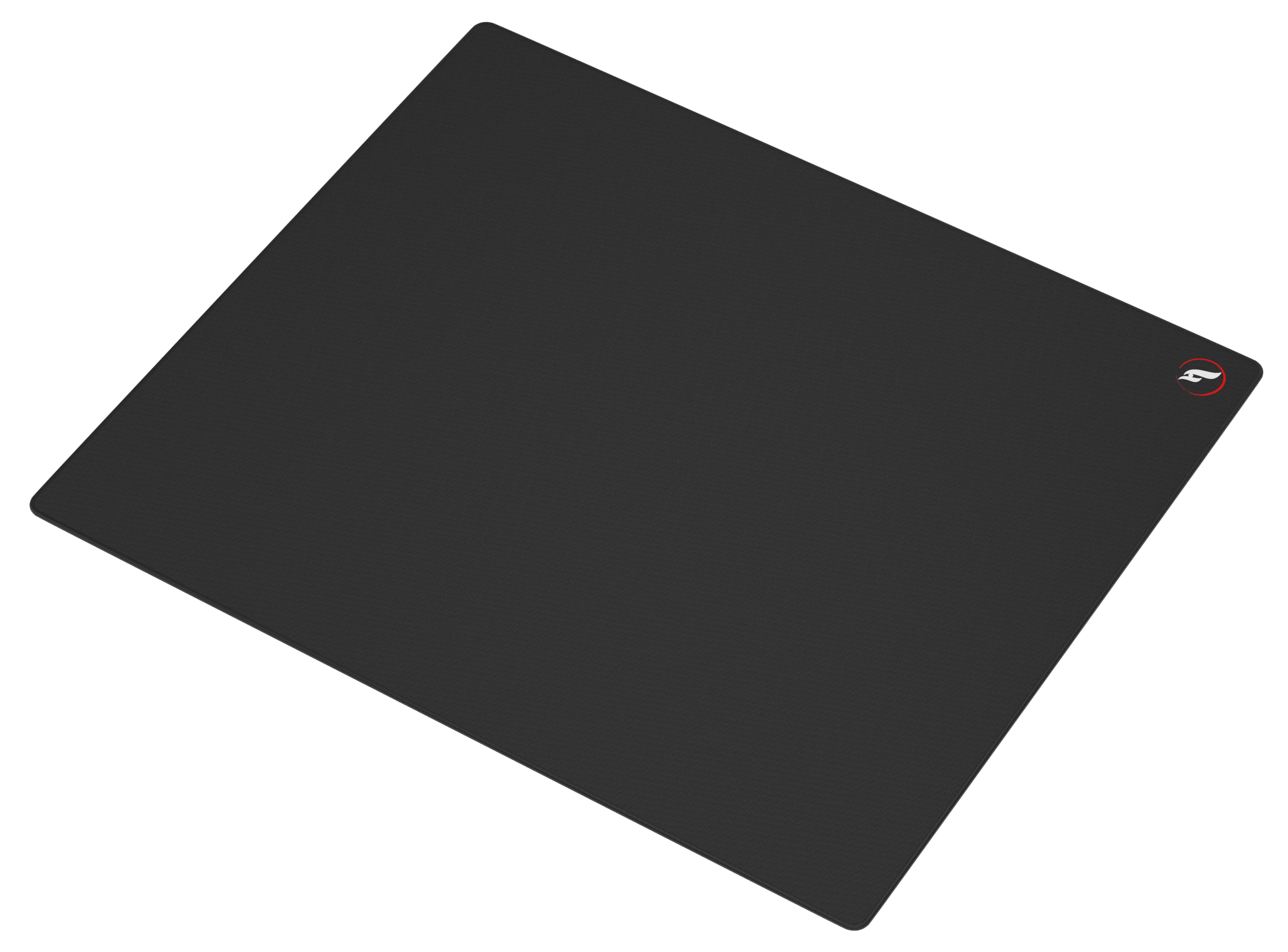
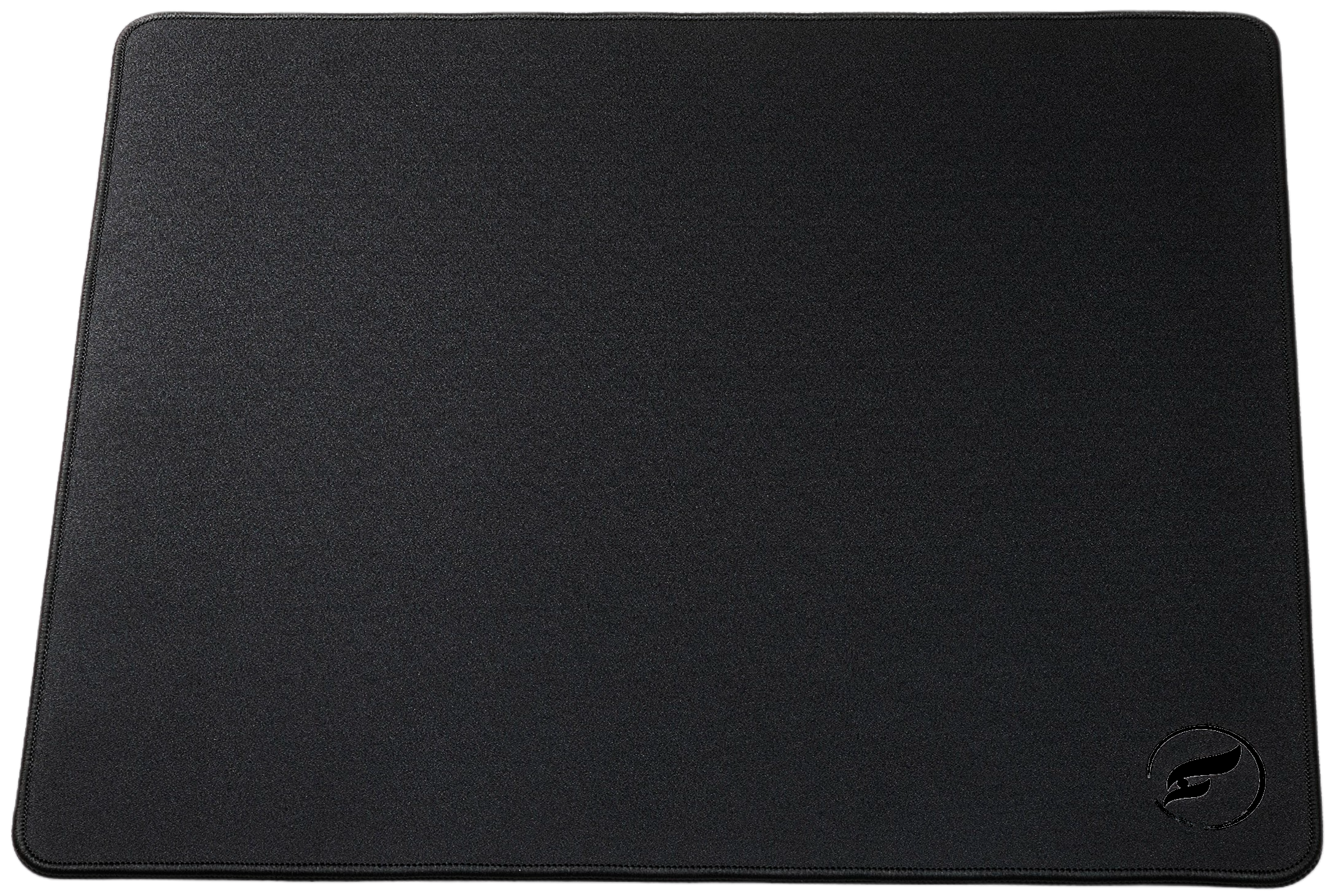
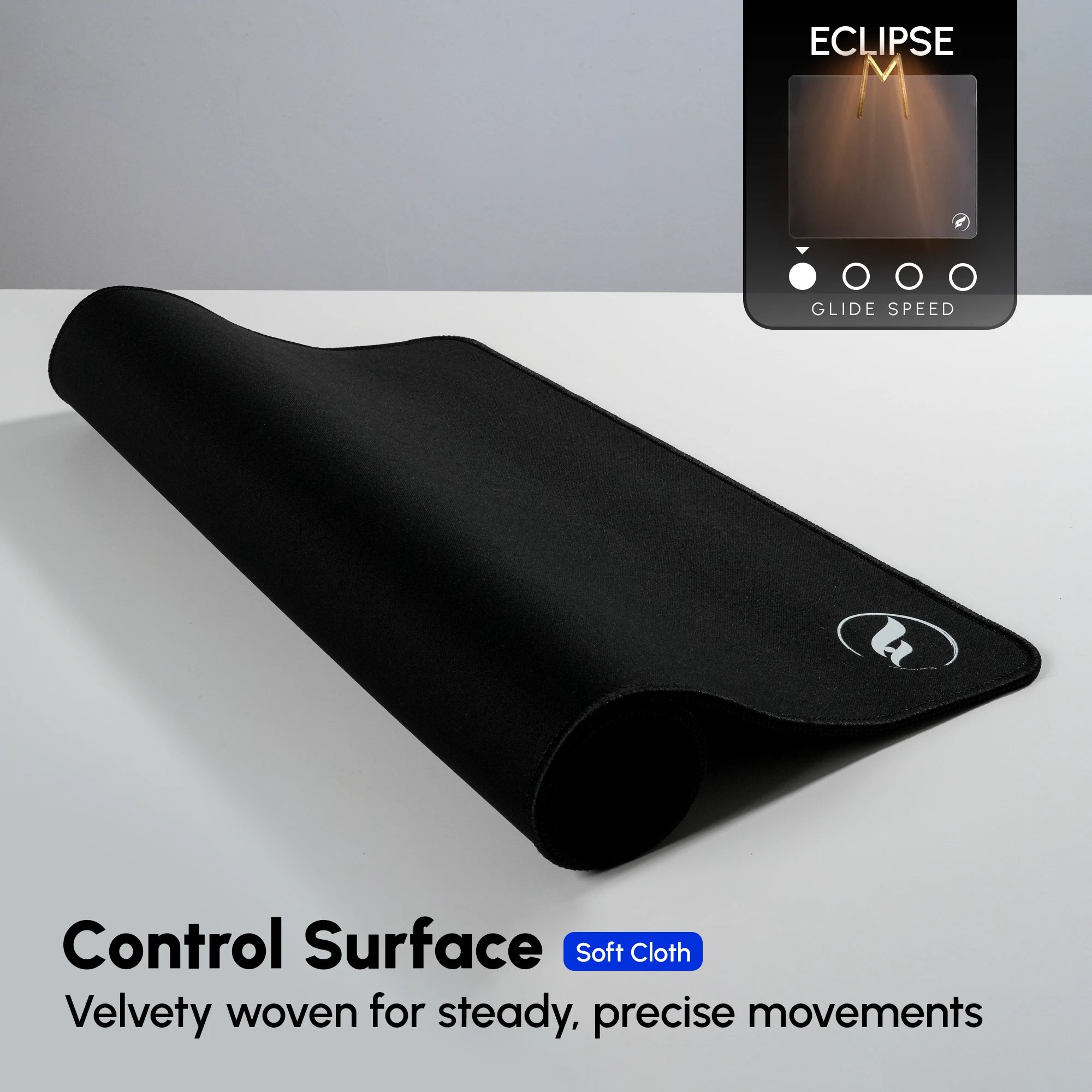
The Odin Gaming Eclipse XL fits this setup because its 490 × 420 mm format supplies a defined mouse area without taking over the desk. Its control-oriented cloth surface, stitched edges, and non-slip natural-rubber base suit a player who wants a more deliberate feel at the stop.
Choose a control surface if small corrections regularly pass the target or very light glide feels hard to settle. This is a preference, not a guaranteed fix. If broad turns already feel restrictive, Eclipse may be too controlled; keep sensitivity unchanged and test it over several sessions.
Place the pad square to the desk edge and preserve an unobstructed path across its usable area. If you use a lower sensitivity and regularly run out of space, measure the desk before assuming any XL pad is enough. A larger surface, a shifted keyboard, or both may solve different parts of the problem.
Add a Compact Keyboard With Aurora65

A 65% keyboard creates a smaller footprint than a full-size board while retaining dedicated arrow keys. In CS2, that can be useful simply because the keyboard can sit farther left, giving the mouse hand more lateral room. The Odin Gaming Aurora65 is a wired USB-C, 65% gasket-mounted board with a 5-pin hot-swap PCB, south-facing RGB, Durock v2 screw-in stabilizers, and QMK/VIA compatibility.
Switches and keycaps are sold separately. Hot-swap support lets you choose switch feel without soldering, but the finished board requires compatible parts and setup time. Linear and tactile switches are personal choices. Discounted Aurora65 LITE purchases currently carry a 30-day claim and return window instead of the one-year warranty, so verify the selected variant, stock, and terms on the live page.
Start with the Aurora65 level and far enough left that its right edge cannot interrupt a wide mouse sweep. A slight rotation can improve left-hand reach for some players, but use only the angle that feels relaxed. Keep movement, buy-menu, and communication binds familiar while you adapt to the layout.
Choose Surface and Position by Your Constraint
Use the table as a troubleshooting tool rather than a prescription. Work from the constraint you can observe, make a small adjustment, and re-test under similar conditions. Record eDPI as mouse DPI × in-game sensitivity if it helps you label the baseline; it is a record of a setting, not a target range. A calculator can check the arithmetic, but only repeatable play can tell you whether the arrangement fits.
| Observed constraint | First adjustment | What to keep constant |
|---|---|---|
| Mouse contacts the keyboard on a wide turn | Move or slightly rotate the keyboard left | Sensitivity and pad placement |
| Small stops feel hard to settle | Try a control-oriented surface such as Eclipse XL | DPI and in-game sensitivity |
| Forearm or shoulder feels cramped | Re-center the pad and adjust chair distance or height | Keyboard binds and key angle at first |
| New gear feels different every session | Return to one documented layout for several sessions | All other settings |
For ergonomics, use a neutral-position check instead of copying another player’s posture. OSHA describes hands, wrists, and forearms as straight, in line, and roughly parallel to the floor, and advises changing position rather than holding one posture for long periods. Keep the pad close enough to avoid reaching forward, relax the shoulders, and make sure the desk edge is not pressing into the same point on the forearm. A wrist rest such as the Nova Padded Keyboard Wrist Rest can support the palms during breaks or menus; move it aside if it encourages bent wrists while playing.
Run a Repeatable Pre-Queue Check
- Clear the mouse lane. Make a full left-to-right sweep and remove cable drag, desk clutter, and keyboard contact.
- Set the anchor points. Square the mousepad, place the keyboard where the left hand reaches comfortably, and keep the mouse-side forearm supported by the desk.
- Write down the baseline. Record DPI, in-game sensitivity, pad, keyboard position, and any keyboard rotation before testing a change.
- Warm up without chasing settings. Use a familiar routine, then play several comparable sessions before deciding that a surface or position is wrong.
- Keep only useful changes. Retain adjustments that make reach and movement more repeatable; reverse changes that add tension, collisions, or uncertainty.
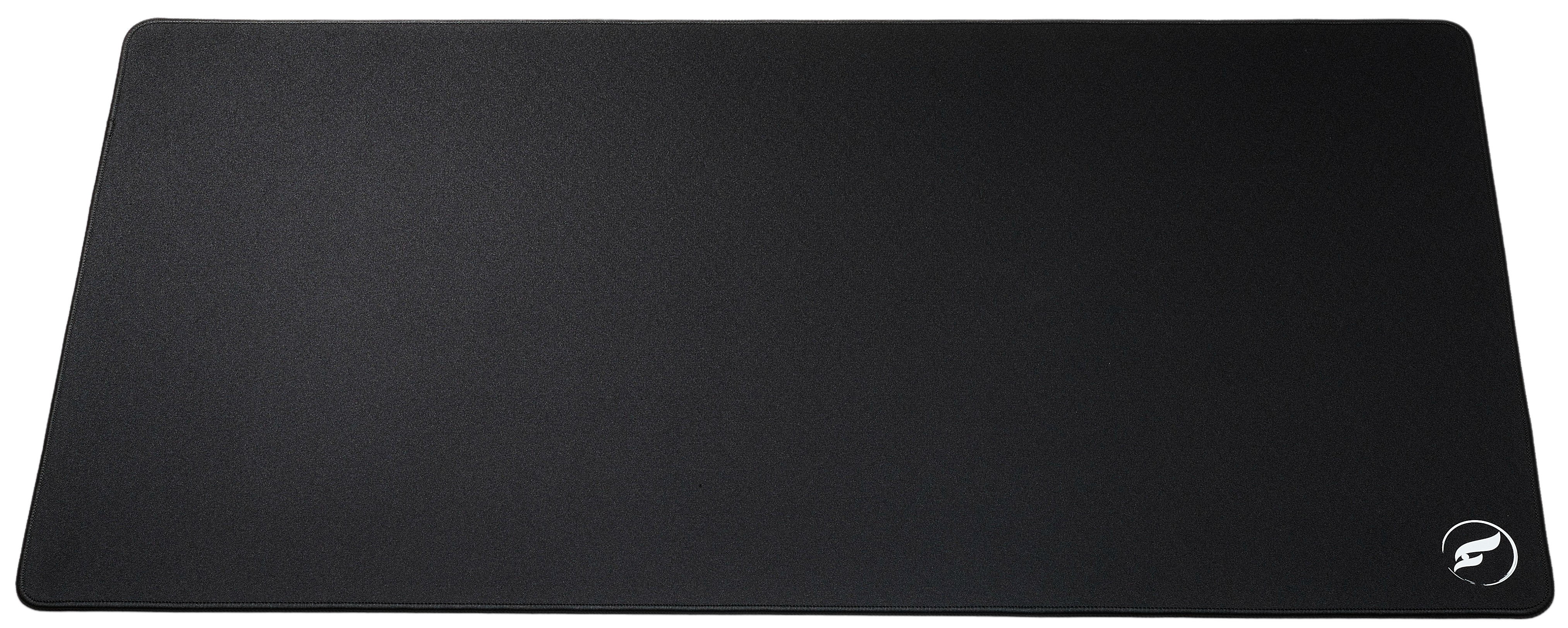
The best competitive setup gives you a clear, repeatable workspace for the way you play. Start with the restriction you can identify, make one measured change, and let practice—not a product claim—decide the outcome. Use the control vs hybrid guide to choose surface feel and the XL vs 2XL guide to confirm the footprint.
Shop the Gear in This Article
Odin Gaming
Make Room for Your Next Round
Choose a surface that fits your CS2 desk, then build a setup you can keep consistent from warm-up to match point.
Shop Competitive Mousepads★★★★★ Rated 4.9/5 by 800+ customers · Free Shipping · 30-Day Returns