

Mousepad Keeps Sliding? How to Diagnose the Base and Choose a Stable Gaming Mousepad
Quick Answer
When a mousepad keeps sliding, clean and dry both the desk and the underside first, then retest on the bare desktop. If the backing is smooth, damaged, permanently curled, or still moves after that check, a replacement with a base designed for traction may help. Base material is not a universal-grip guarantee: it must suit your desk finish and layout.
Compare: Andromeda Pro XL | ZeroGravity XL
A moving pad is more than an annoyance. It changes the starting position of your mouse, can bunch under your forearm, and turns a familiar desk setup into an inconsistent one. The good news is that “gaming mousepad won’t stay in place” is usually a diagnosable contact problem, not a reason to immediately buy the stickiest-looking replacement.
Start with the surfaces that actually touch: the desk finish, dust or cleaning residue, moisture, the pad’s backing, and whether the pad has enough uninterrupted room to sit flat. Then make a replacement decision only if a clean, dry retest points to the backing or the fit. This guide walks through that order, including what to consider when a mousepad slips on a glass desk.
Diagnose Why Your Mousepad Is Sliding
A mousepad base grip comes from the interaction between its backing and the desktop, not from the top cloth surface. Fine dust, skin oil, crumbs, furniture polish, or residue from a desk cleaner can create a thin layer between them. Even a base that normally grips well may slide if either contact surface is dirty or damp. Wipe the desk with a clean, slightly damp microfiber cloth using a cleaner appropriate for its finish, then dry it completely. Brush or wipe loose debris from the pad’s underside without saturating it.
Place the pad on the cleared area and press each corner and the center. Rocking, lifted corners, or one-sided movement can indicate an uneven base, warped desk area, or obstruction beneath an edge.
Desk material changes the result. On smooth glass, dust, fingerprints, and condensation are easy to miss. Clean and dry both contact surfaces before testing. Avoid tape, glue, or harsh solvents that may leave residue or damage the finish.
Rule out contamination, moisture, unevenness, and layout first. A replacement base is a considered next step, not a substitute for a clean, flat contact surface.
A Polyurethane-Base Option: Andromeda Pro XL

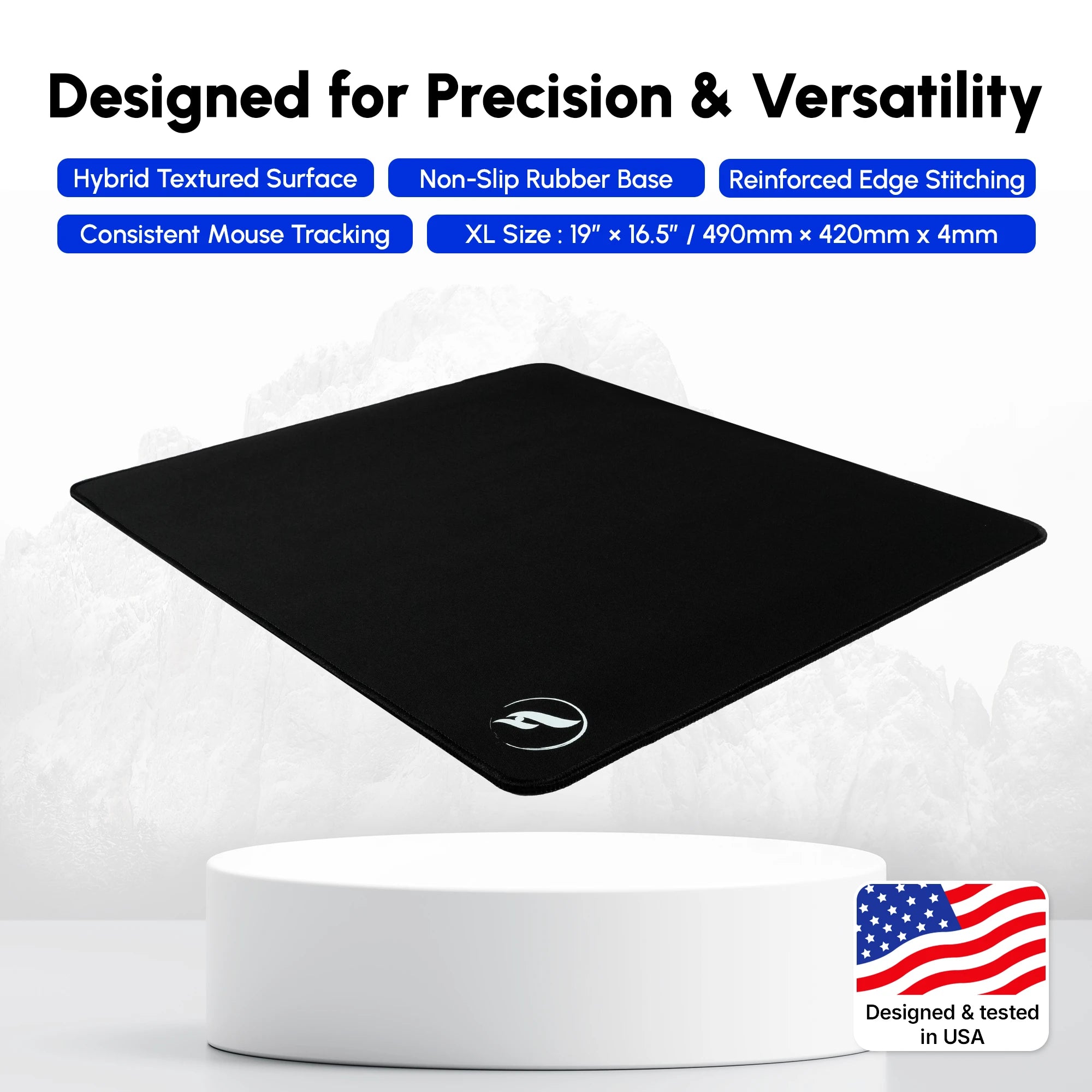
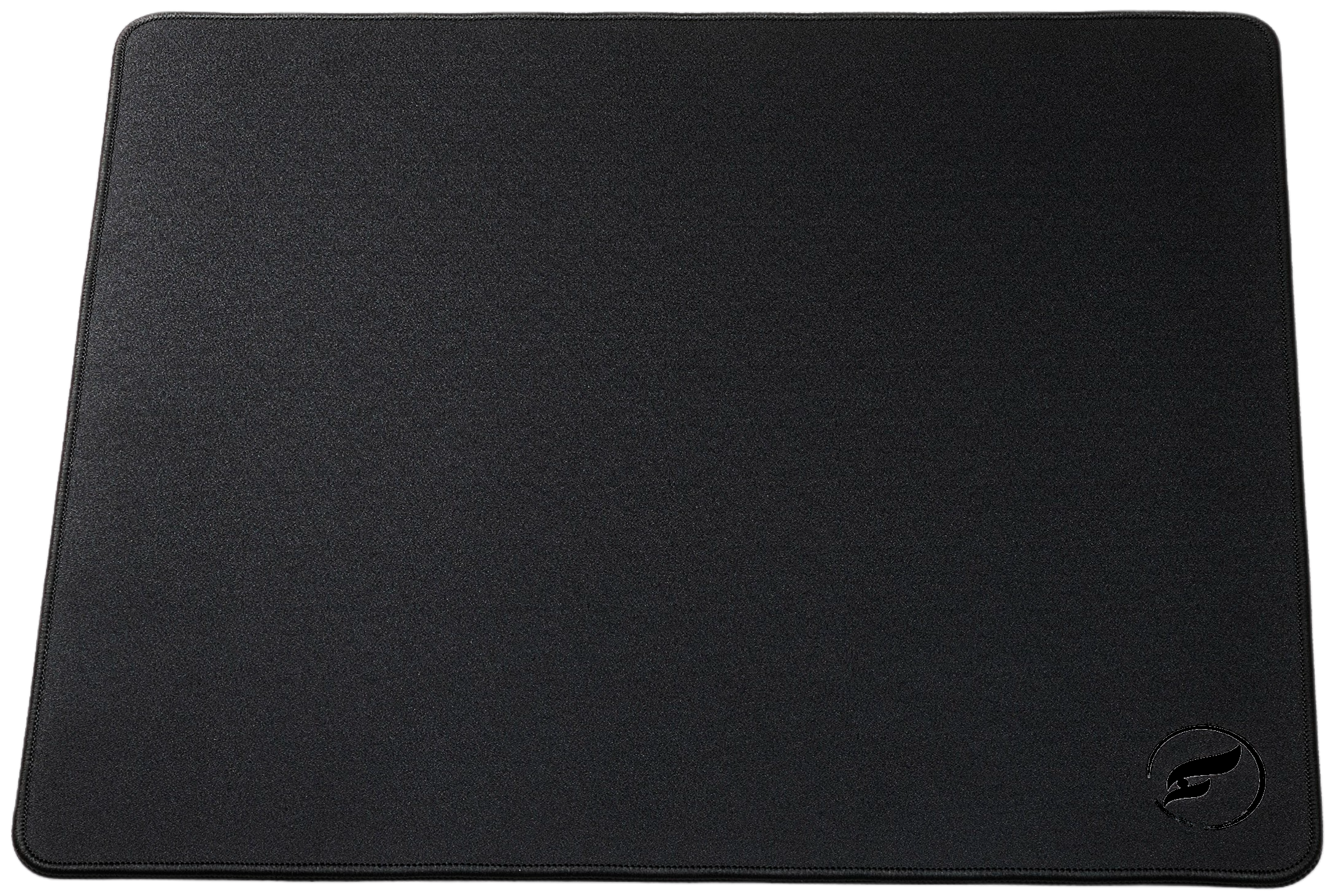
If a clean pad still shifts and you want a hybrid surface, inspect the Odin Gaming Andromeda Pro XL. Odin lists reinforced stitching, a hexagonal polyurethane base, and a 490 × 420 × 4 mm footprint. Results still depend on the desk finish.
Choose it when you want hybrid glide and this base construction. Confirm that its footprint sits fully flat, and repeat the dry contact test on glass rather than assuming universal grip.
A Natural-Rubber-Base Option: ZeroGravity XL

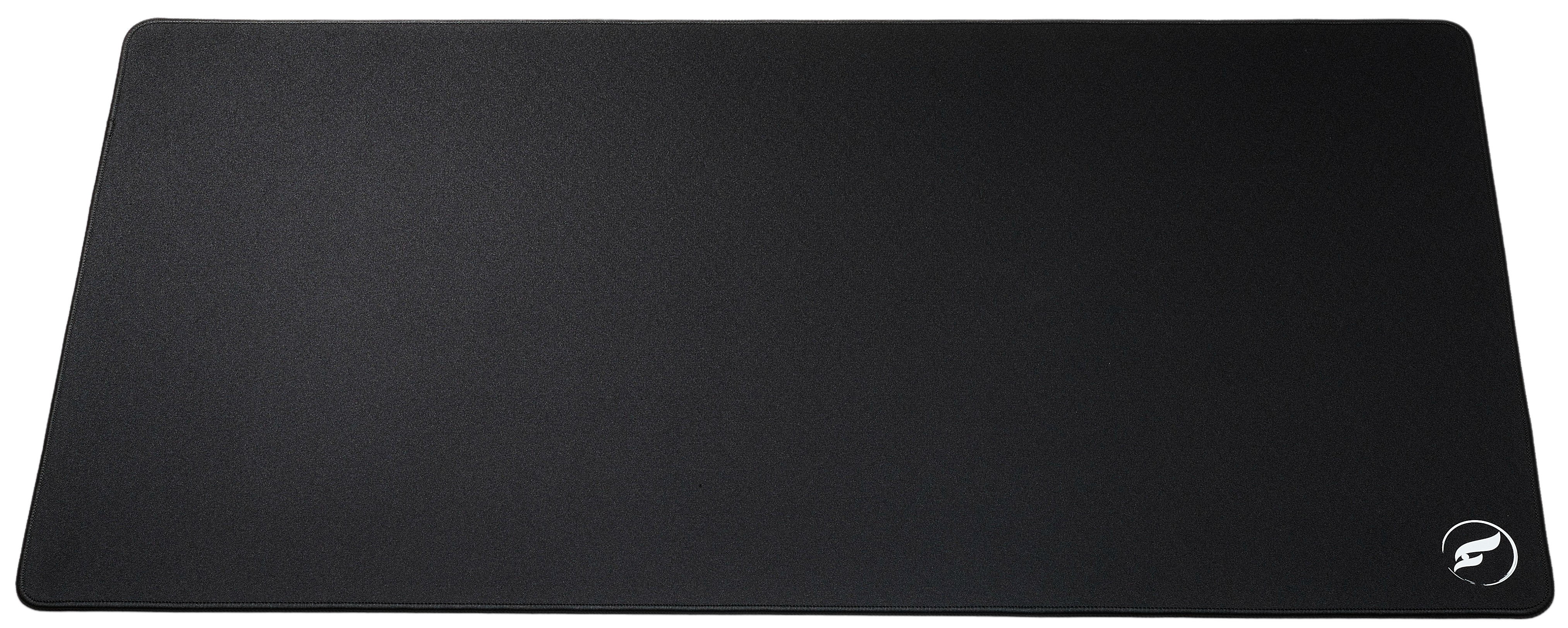
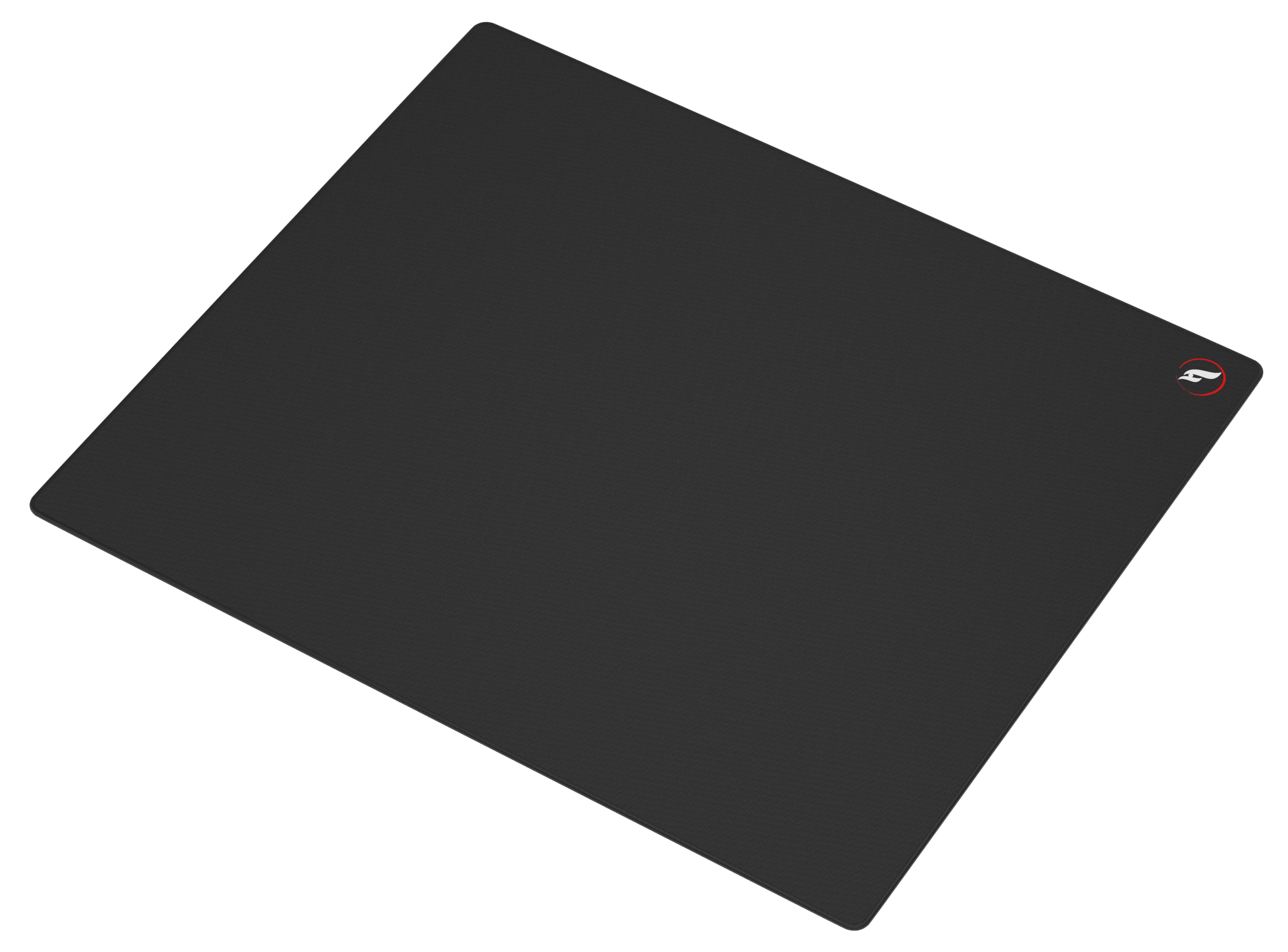
The ZeroGravity — Sorrow AzpectCuztomz — Speed Surface Gaming Mousepad • XL is the faster-surface route. Odin lists a textured, weighted natural-rubber base and the same 490 × 420 × 4 mm footprint.
Choose it because speed-surface feel and natural-rubber backing suit you, not because natural rubber guarantees stability. Residue, moisture, gloss, or a seam can still reduce contact.
Sliding Mousepad Diagnosis Checklist
| What You Notice | Check First | Next Step |
|---|---|---|
| Pad started moving recently | Dust, oil, cleaner residue, or moisture on desk and base | Clean gently, dry completely, then retest on bare desk |
| Only one corner creeps or lifts | Curling, uneven backing, desk seam, or obstruction | Clear the area; replace if the backing remains misshapen |
| Mousepad slips on a glass desk | Fingerprints, condensation, and a fully level landing area | Dry both surfaces and test; choose a new base only if needed |
| Pad shifts when your arm or keyboard catches it | Pad position, overlap, cable routing, and usable desk dimensions | Reposition for full contact or measure for a better footprint |
| Clean, flat pad still slides every session | Worn, slick, hardened, or damaged backing | Replace based on preferred surface and base construction |
Clean, Retest, Then Replace If Needed
Use three steps: clean and dry the desk; clear debris and inspect the backing for cracks, wear, waviness, or curl; then retest normal mouse and forearm movements. Move the pad to another clear area if you suspect a local desk defect.
If a clean, dry, flat pad still drifts, replacement is reasonable. Choose Andromeda Pro XL for hybrid cloth with a hexagonal polyurethane base, or ZeroGravity Sorrow XL for a speed surface with textured natural rubber. Retest either choice on your desk.
Compare Odin Gaming mousepads for your desk and surface preference →
Shop the Gear in This Article
Odin Gaming
Build a More Stable Mousepad Setup
Start with a clean, dry desk, then compare hybrid and speed surfaces with the base construction and footprint that fit your setup.
Shop All Mousepads★★★★★ Rated 4.9/5 from 807 reviews · 30-Day Returns · Check Current Shipping Terms